Best Offline AI Writing Assistant for Novelists (2026)
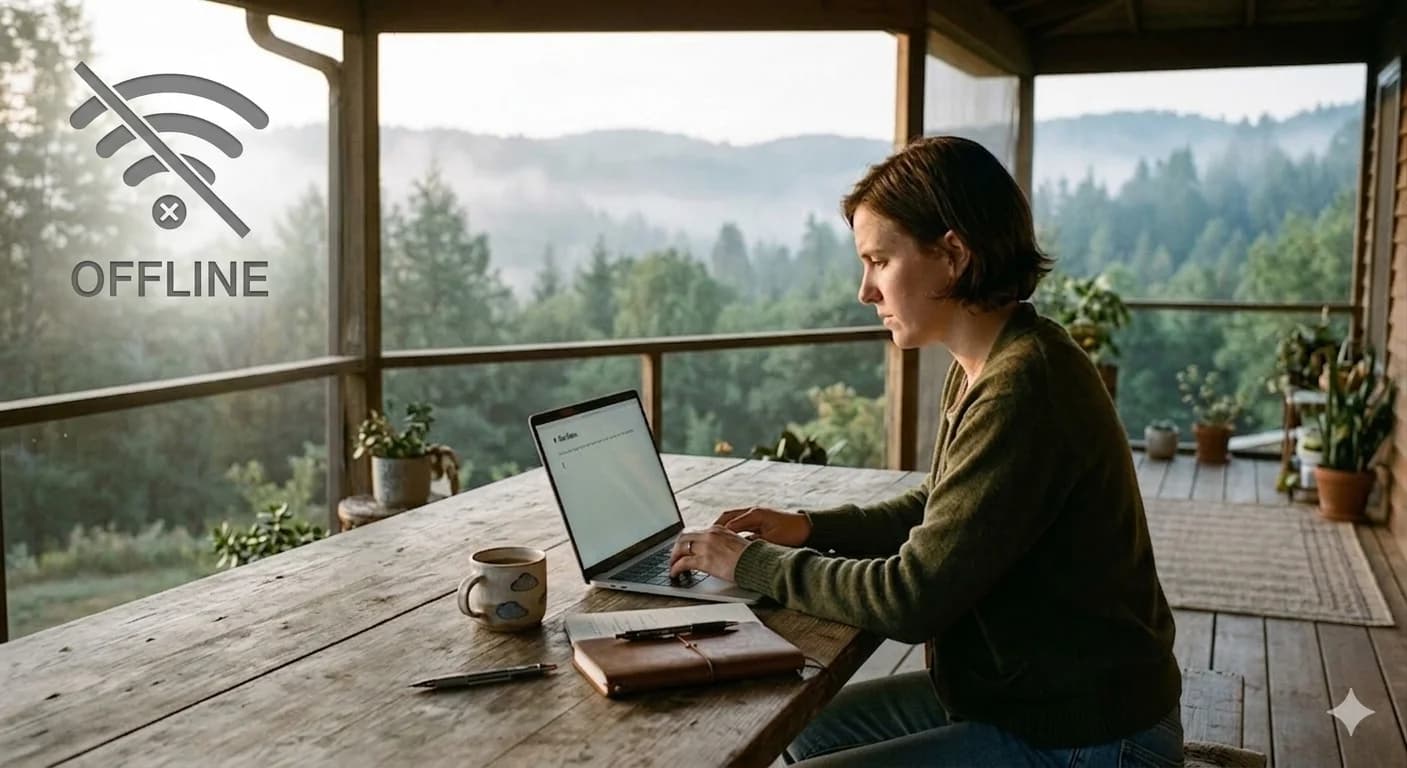
This guide is for writers who are tired of cloud dependency, subscription fees, and the low-grade anxiety of feeding an unpublished manuscript into a server they don't control.
Yes, an AI writing assistant can work completely offline. The trick is that the language model has to live on your own machine instead of on someone else's server. You install a local model runner — Ollama or LM Studio — download a model once, and point a writing app that supports local endpoints at it. After that first download, everything runs with the Wi-Fi switched off, and no part of your manuscript ever leaves your computer.
That's the short version. The longer version is why I bothered, what it actually costs in output quality, and how to set it up in about twenty minutes.
I remember the exact moment I started caring about this.
I was on a train, halfway through a crucial scene. The kind of scene where everything in the story pivots. I opened my AI writing tool to get some assistance, and got a spinning wheel instead. No connection. Dead session. I had to sit with my frustration and stare out the window until the train reached a station with decent signal.
That's a minor inconvenience on its own. But it crystallised something I'd been ignoring: I had built my entire creative workflow around a dependency I didn't control. Cloud AI tools are fantastic when they work. When they don't, or when you're in a location without reliable internet, you're just stuck.
And connectivity is the mild version of that dependency. The severe version is the tool itself going away — as PlotDrive users found out when the company gave them a wind-down notice and a deadline to export years of manuscripts and notes. A model running on your own hard drive cannot send you that email.
What Is a Local AI Writing Assistant?
A local AI writing assistant is a writing tool whose language model runs on your own computer rather than on a company's servers. You install a model runner — Ollama or LM Studio — download a model file once, and your writing app sends prompts to that model over a local address on your own machine. Nothing is uploaded, nothing is billed per token, and nothing stops working when the connection drops.
People use local and offline interchangeably, and in practice they mostly land in the same place, but the relationship only runs one way and it's worth having straight before you shop. Local describes where the model runs. Offline describes what that buys you. Every genuinely offline assistant has to be local, because without a server there's no other way to answer a prompt. The reverse isn't guaranteed — which is exactly where most of the confusion in tool marketing comes from.
What that changes for a novelist is smaller and more specific than the pitch usually suggests. A local assistant is excellent at the high-volume, low-stakes half of the work: continuing a scene you've already framed, generating three versions of a line of dialogue, summarising a chapter into notes, checking a paragraph against what you've told it about a character. It is not going to out-write a frontier model on the scene your whole book turns on. The useful mental model is a fast, private, endlessly patient drafting partner that lives on your laptop — not a replacement for the best prose model money can rent.
What "Offline AI Writing" Actually Means
There's a distinction worth making upfront, because tools blur it in their marketing. "Offline AI writing tool" can mean two very different things:
- Local files, cloud AI. A writing app that stores your manuscript on your disk but still calls a cloud AI API for every generation. It "works offline" for basic typing and loses every AI feature the moment you lose signal.
- Local files, local AI. A writing app that runs the model itself on your machine. Fully air-gapped, no API calls, everything on your own hardware.
The second category is what this guide is about, and it's made possible by Ollama and LM Studio, which let you run large language models directly on your computer. A useful test when you're evaluating any tool that claims to work offline: ask whether its AI provider setting accepts a custom local endpoint. If it doesn't, the AI features are cloud-only no matter what the landing page says.
Why Writers Are Moving to Local AI Models
The trend is real and accelerating. Here are the four reasons writers I've spoken to are making the switch.
1. Privacy: Your Manuscript Stays on Your Machine
When you use a cloud-based AI writing tool, every scene you paste, every character description you share, every plot detail you ask for help with passes through someone else's server. That content may be logged, retained, or used in ways you can't fully audit — the specifics live in a terms-of-service page most writers never open.
For a novelist working on an original story, this is a real concern. Your unpublished manuscript is your intellectual property. With local AI models, that content never leaves your computer. Full stop.
2. No Monthly Fees for AI Access
Most cloud AI writing tools charge per token, per month, or both — and the sticker price is rarely the real one, since several of the popular tools bill you for a subscription and expect you to bring your own API key on top of it. It's worth doing the arithmetic before you commit; the tier-by-tier breakdown of what NovelCrafter actually costs is a good illustration of how the advertised number and the annual number diverge.
When you run a local model via Ollama, there are no per-request fees at all. The compute cost is your electricity, and on modern hardware that's genuinely negligible for a writing session. The app you drive it from still has to be paid for once — NovelMage is $99.99 one-time rather than a recurring bill — but the model usage on top of it is free forever, which is the part that normally compounds.
3. Works Anywhere, Any Time
Planes, trains, mountain cabins, remote retreats, hotels with terrible Wi-Fi. Local models don't care. Once set up, your AI writing assistant is available whenever your laptop is open. If you do a lot of drafting away from a desk, this is the single biggest quality-of-life change on this list.
4. No Rate Limits, Outages, or Refusals
Cloud AI services go down. They impose rate limits at peak hours. They have maintenance windows. And they apply content policies that don't always distinguish between a novel and a violation — a problem that lands hardest on people writing romance, horror, or anything with real edge to it, which is why the question of which models will actually write adult and dark fiction comes up as often as it does. A local model has no rate limit and no policy layer. The only constraint is your own hardware.
What Hardware Do You Actually Need?
This is the question that stops most writers before they start, and the honest answer is that the bar is lower than people assume. Models are distributed in quantised form — compressed so they fit in far less memory than their raw size suggests — and a quantised 7B model is roughly a 4-5GB download.
- 8GB RAM: you can run a 3B model. It works, technically. The prose quality rarely justifies the effort, and I wouldn't build a workflow on it.
- 16GB RAM: the practical entry point. A quantised 7B or 8B model runs comfortably alongside your writing app and a browser. This is where most writers should start.
- 32GB RAM: opens up 13B-14B models, which are meaningfully better at holding a long scene together without losing the thread.
- Apple Silicon: punches well above its weight, because the GPU shares system memory rather than being limited to a separate pool. An M-series laptop with 16GB will often outrun a Windows machine with more RAM and no discrete GPU.
Generation speed matters more than you'd expect for creative work. A model that produces text slower than you read is a model you'll stop reaching for. Test that before you commit to a size.
How to Set Up an Offline AI Writing Assistant With Ollama
Here's a practical walkthrough. It takes about twenty minutes the first time, most of which is the model download.
Step 1: Install Ollama
Ollama is a free, open-source tool that lets you download and run AI models locally. Visit ollama.com and download the version for your operating system (Mac, Windows, or Linux). Installation is straightforward, and it runs quietly as a background service.
Step 2: Download a Writing-Optimised Model
Once Ollama is installed, open your terminal and run:
ollama pull mistral
For novel writing I've had good results with Mistral 7B, the Llama 3 variants, and Qwen 2.5. If you have 32GB to work with, it's also worth auditioning a community fine-tune built specifically for fiction — Cydonia-24B is the one most often recommended for prose that doesn't read like a helpful assistant. The larger the model, measured in billions of parameters, the better the output, but the more memory it needs. Pull two or three and compare them on the same scene — they have genuinely different voices, and the one that suits your register isn't always the biggest.
Step 3: Point Your Writing App at the Local Endpoint
In NovelMage's settings, select "Local Model" as your AI provider and enter your Ollama endpoint, typically localhost:11434. From that point every AI feature runs through your local model on your own machine — scene continuation, character voice matching, and continuity checking against your Codex of characters, locations, and lore, all with no internet connection involved.
Step 4: Test It With the Wi-Fi Off
Don't skip this. Turn off your connection entirely and generate a paragraph. If it works, you have a genuinely offline setup; if it silently fails, something in the chain is still reaching for the cloud, and it's better to discover that at your desk than on a plane.
What About LM Studio?
LM Studio is an alternative to Ollama with a graphical interface, which makes it the easier starting point for writers who'd rather not touch a terminal. It supports the same range of models and includes a proper model browser for discovering and downloading options.
I use both: Ollama for its simplicity once it's configured and running in the background, LM Studio when I want to audition a new model before committing to it. Either one exposes a local endpoint, and a writing app that accepts a custom endpoint doesn't care which is underneath.
The Honest Trade-offs
I want to be straightforward about what you give up going fully local:
- Smaller local models (7B parameters) are noticeably less capable than frontier cloud models like Claude Opus 5 for complex creative tasks — subtle subtext, long-range callbacks, holding a distinctive voice over thousands of words. The gap has narrowed a great deal, but it's real.
- Setup requires a small amount of technical comfort. Nothing extreme, but you are running software from a terminal window at least once.
- Local context windows are smaller. Feeding a local model your entire manuscript for a continuity check usually isn't practical; you work chapter by chapter instead, which makes it worth understanding why AI loses track of your story details in the first place so you can structure what you feed it.
- The bigger, better local models want serious RAM (32GB or more). On older hardware you'll be capped at smaller models.
For most writers the sweet spot is hybrid: local models for daily drafting, continuity checks, and brainstorming, where volume matters more than brilliance — then a frontier cloud model for the pivotal scenes where you want the strongest prose available, and it's worth knowing which of the current Claude models is actually best suited to fiction before you spend anything on that half. Whichever app you drive them from, the setting you care about is the one that lets you swap providers per scene rather than committing to one for the whole book.
Why I Stopped Worrying About My Manuscript's Privacy
Before I switched to a local-model-first setup, I had a habit I'm slightly embarrassed to admit: I used to redact character names and place names before pasting into cloud AI tools, then manually replace them afterward. I told myself it was a reasonable precaution. Really, it was an admission that I didn't fully trust the service.
Now I paste raw chapters directly. The model reading my manuscript is running on my machine. The data doesn't go anywhere. It's a small thing, but it removed a friction I hadn't realised was affecting my creative flow — and the difference showed up in how often I actually asked for help, which turned out to be the whole point.
The Best Local AI Writing Assistant Options, Ranked
- NovelMage — purpose-built for novelists, connects to Ollama and LM Studio natively, and the full novel toolkit keeps working offline: Codex, scene tools, continuity checks. One-time purchase rather than a subscription, with no per-token billing on top.
- Ollama on its own — more technical and with no novel-specific features, but maximum flexibility if you'd rather assemble your own workflow around a plain chat interface.
- LM Studio — the best model browser of the three and the friendliest interface for experimenting, though again with nothing novel-specific in it.
The right pick comes down to how much of the plumbing you want to own. Ollama and LM Studio are the engine; the question is whether you also want to build the car around them. If you'd rather spend the evening writing than configuring, start here: → get NovelMage and connect your first local model.
Frequently Asked Questions
What is a local AI writing assistant?
A local AI writing assistant is a writing tool whose language model runs on your own computer rather than on a company's servers. You install a model runner such as Ollama or LM Studio, download a model file once, and your writing app sends prompts to that model over a local address on your own machine. Nothing is uploaded, nothing is billed per token, and nothing stops working when the connection drops.
What is the best local AI writing assistant for novelists?
For novel-specific work, the best option is a writing app whose AI provider setting accepts a custom local endpoint, driven by Ollama or LM Studio underneath, so that story tools — a codex, scene continuation, continuity checks — keep working with the model running on your machine. NovelMage is built this way. If you'd rather assemble your own workflow, Ollama on its own is the most flexible and LM Studio is the friendliest for auditioning models, though neither includes novel-specific features.
Can an AI writing assistant work completely offline?
Yes. An AI writing assistant runs fully offline when the language model itself sits on your own machine rather than on a remote server. You install a local model runner such as Ollama or LM Studio, download a model once, and point a writing app that supports local endpoints at it. After that initial download, no internet connection is required and no manuscript text leaves your computer.
Is a local AI writing assistant the same as an offline one?
Almost, but not quite. Local describes where the model runs; offline describes what that buys you. Every genuinely offline AI assistant has to be local, because there's no way to answer a prompt without a server otherwise. The reverse isn't guaranteed: some apps store your manuscript locally while still calling a cloud API for every generation, so the AI features fail the moment you lose signal. The reliable test is whether the tool's AI provider setting accepts a custom local endpoint.
Which AI writing tools work offline?
Very few. Most are cloud-only, so their AI features stop working the moment you lose signal even though the editor still opens. The offline-capable options are apps whose AI provider setting accepts a custom local endpoint, or using Ollama or LM Studio directly and building your own workflow around them.
How do I use Ollama for novel writing?
Install Ollama from ollama.com, pull a model with a command such as ollama pull mistral, then point your writing app's AI provider setting at your local Ollama endpoint, typically localhost:11434. From that point the AI features run locally on your machine with no internet needed.
Is it safe to use AI writing tools with my unpublished manuscript?
With cloud-based tools, your manuscript passes through external servers and may be logged or retained under terms you can't fully audit — check the provider's data-retention and training policy before pasting an unpublished draft. With a local model running via Ollama or LM Studio, the question disappears entirely: the manuscript never leaves your computer.
What hardware do I need to run a local AI model for writing?
16GB of RAM is the practical entry point and runs a quantised 7B or 8B model comfortably for drafting and brainstorming. 32GB opens up 13B-14B models, which hold a scene together noticeably better. Apple Silicon machines punch above their weight because the GPU shares system memory. On 8GB you can technically run a 3B model, but the prose quality rarely justifies the setup.
What is the best local AI model for fiction writing?
For most writers, a 7B-class model such as Mistral 7B or a Llama 3 variant performs well for daily drafting and scene assistance on 16GB of RAM, and Qwen 2.5 is a strong alternative with good instruction-following. Models in the 13B-plus range produce better prose but need more memory, and fiction-specific community fine-tunes such as Cydonia-24B are worth auditioning if you have the RAM for them. Download two or three and run the same scene through each — the differences in voice are obvious immediately.
What is the difference between Ollama and LM Studio?
Both run AI models locally on your machine. Ollama is simpler and runs as a background service driven from the command line. LM Studio has a graphical interface with a model browser, making it easier for writers who prefer not to use the terminal. Either one exposes a local endpoint that a writing app can connect to.